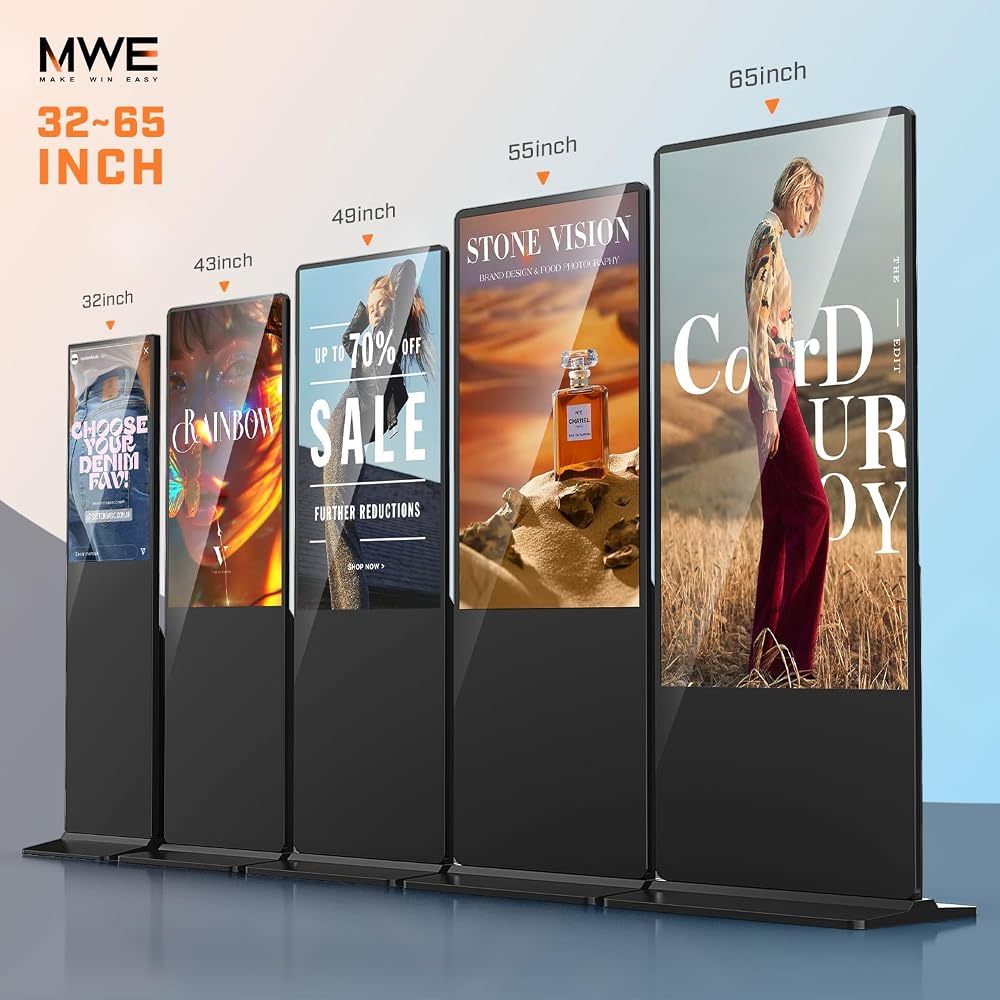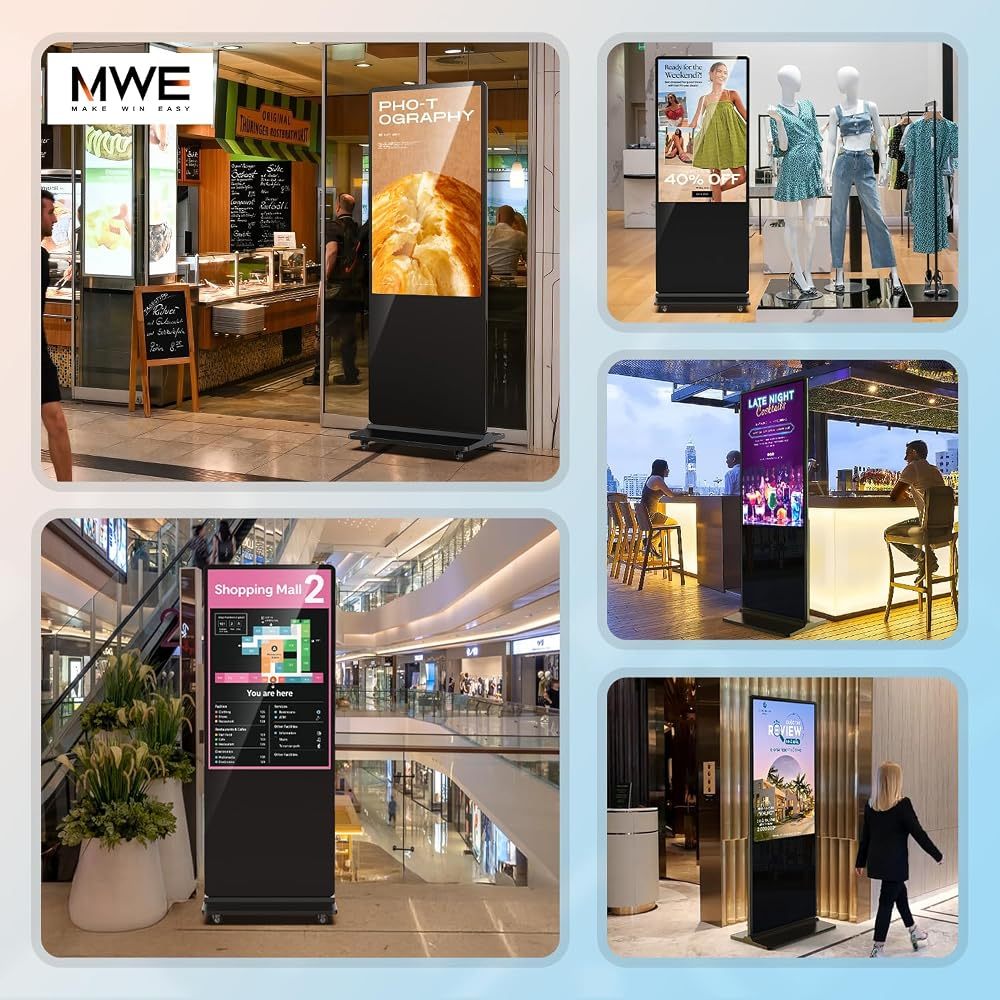
Most modern digital signage displays run Android. That means the screen has its own small computer inside: it stores your content, plays it on a loop, switches on and off on schedule and can be updated over Wi-Fi — without a separate media player.
Three ways to get content on screen
- USB auto-play. Copy images and videos to a USB stick, plug it in, and the display starts playing them automatically. The simplest option — free and no internet needed.
- Phone app publishing. Apps such as LEDArt let you send images, videos and text to the screen from your phone over the same Wi-Fi network. Ideal for one or two screens.
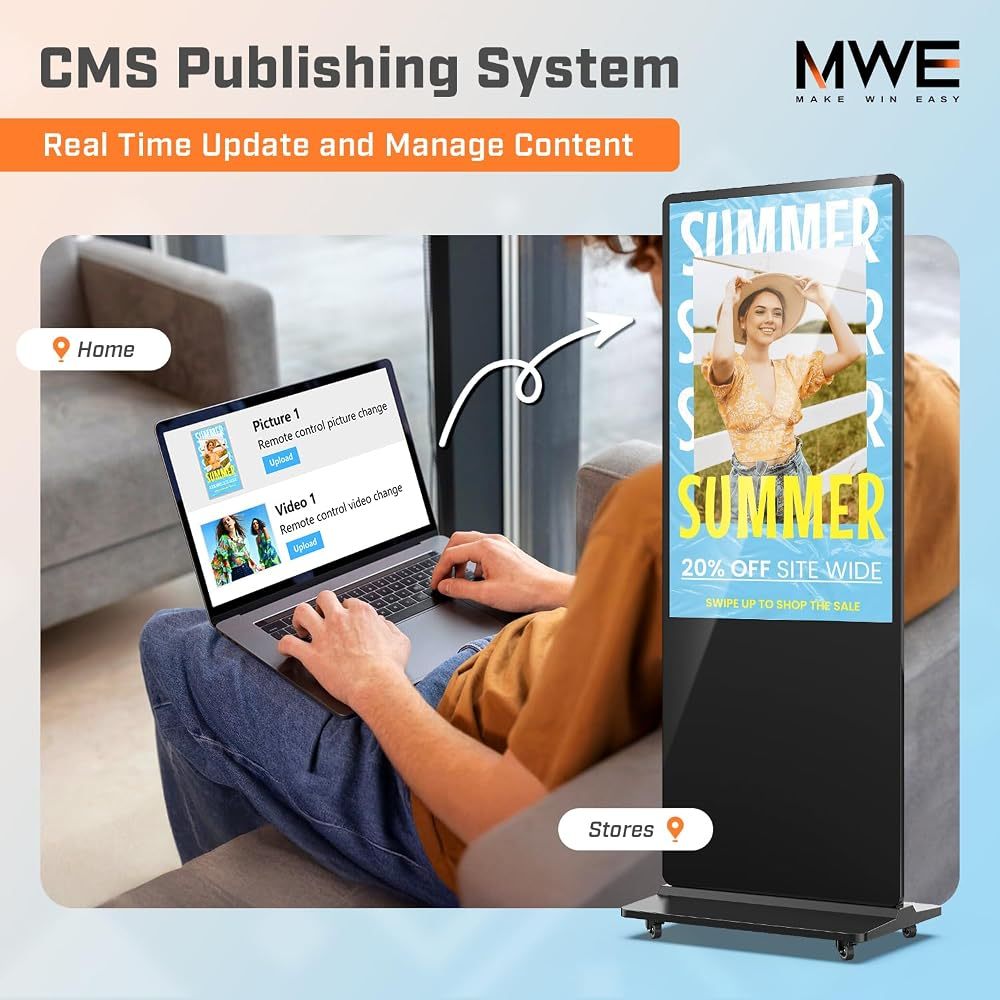
- CMS (content management system). A web dashboard to upload content once, schedule it and push it to many screens in different locations.
Is there free digital signage software?
Yes. Many Android displays ship with their own free player and publishing app, which covers most small-business needs. Paid cloud CMS platforms add features like multi-location management, user roles and live data, usually as a monthly fee per screen. Start with the free tools; upgrade only when you manage many screens.
How to use digital signage effectively
- Split-screen layouts — a video in one zone, prices or news in another.
- Timer on/off — match your opening hours and cut power use.
- Short loops — 15–30 seconds per slide, 1–3 minutes per loop.
- Portrait content — design at 1080×1920 (or 2160×3840 for 4K) for vertical kiosks.
Setup in five steps
- Place the kiosk near a power socket and connect Wi-Fi or Ethernet.
- Set the orientation, language and time zone.
- Load content via USB, app or CMS.
- Choose a layout and set the on/off schedule.
- Test from the viewing distance your customers will have.
Our picks
All QIXZOCV MWE kiosks run Android with USB auto-play, split-screen and timer functions; the full-screen 75-inch model adds remote CMS control, and the mobile 43-inch kiosk supports phone publishing on the move. New to signage? Start with our digital signage kiosk buying guide.
Recommended QIXZOCV Models
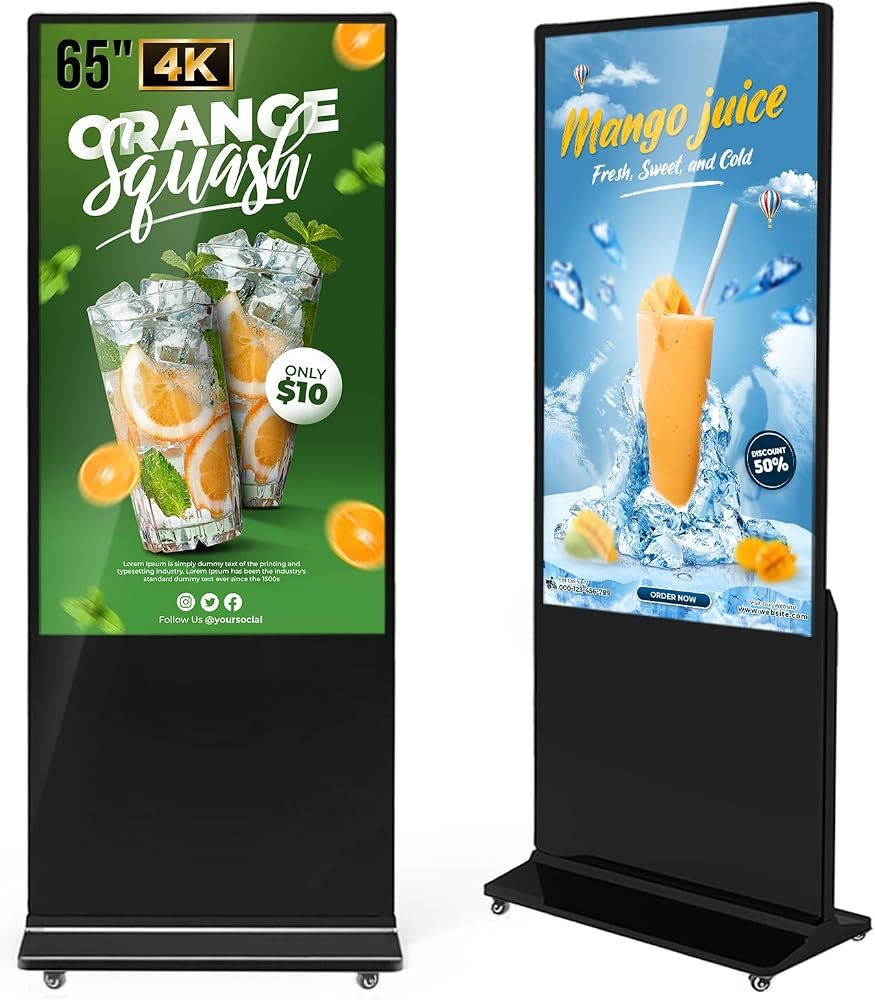
QIXZOCV MWE 65-Inch 4K Digital Signage Kiosk
- 65" 4K UHD
- Android media player
- Touch or non-touch
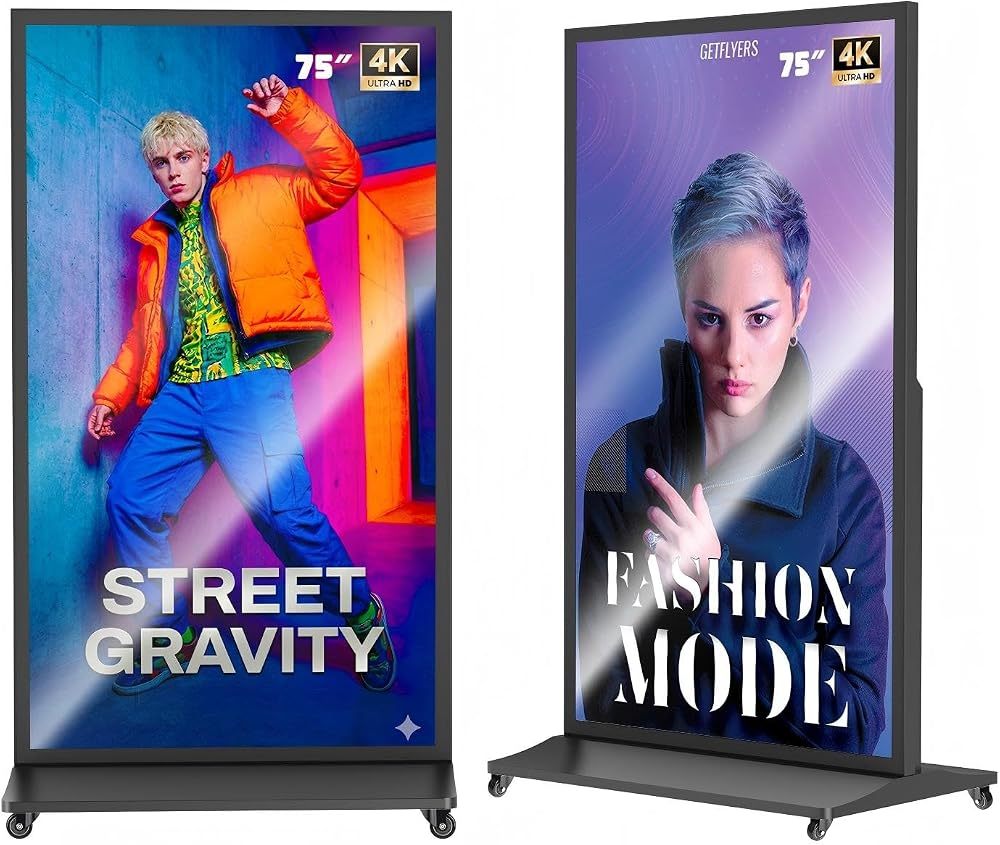
QIXZOCV MWE 75-Inch Full Screen Digital Signage
- 75" / 85" 4K
- CMS remote control
- Full-screen design
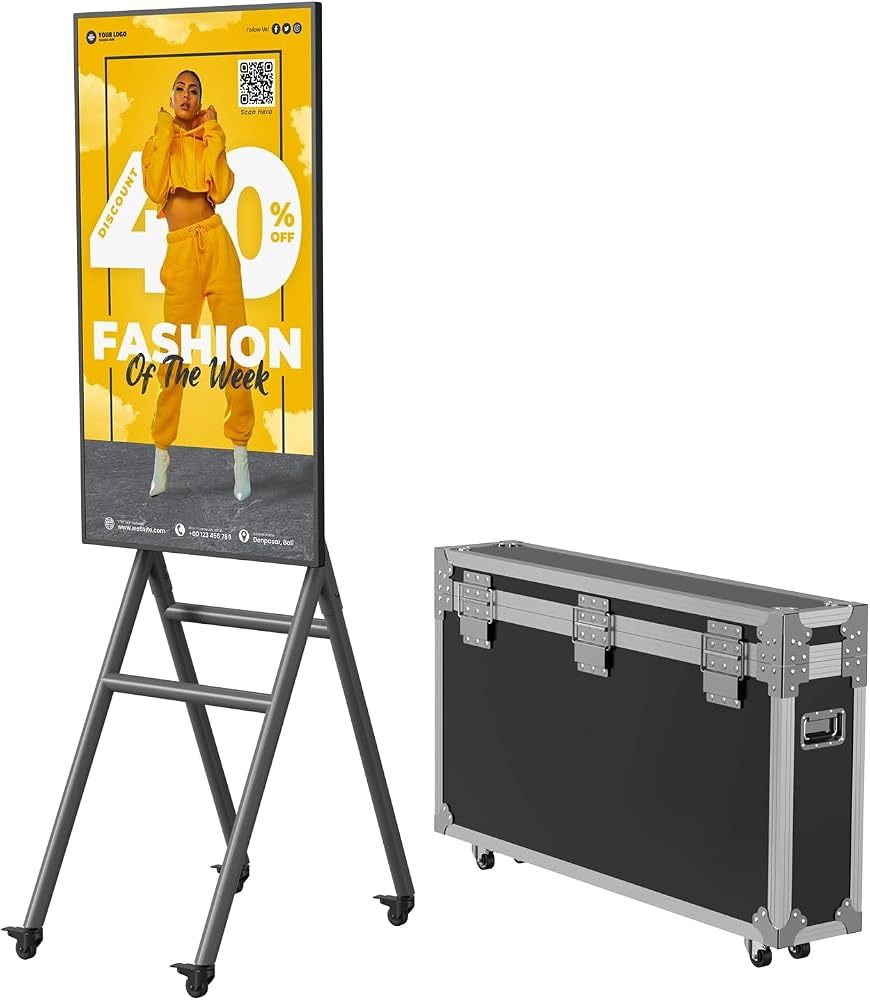
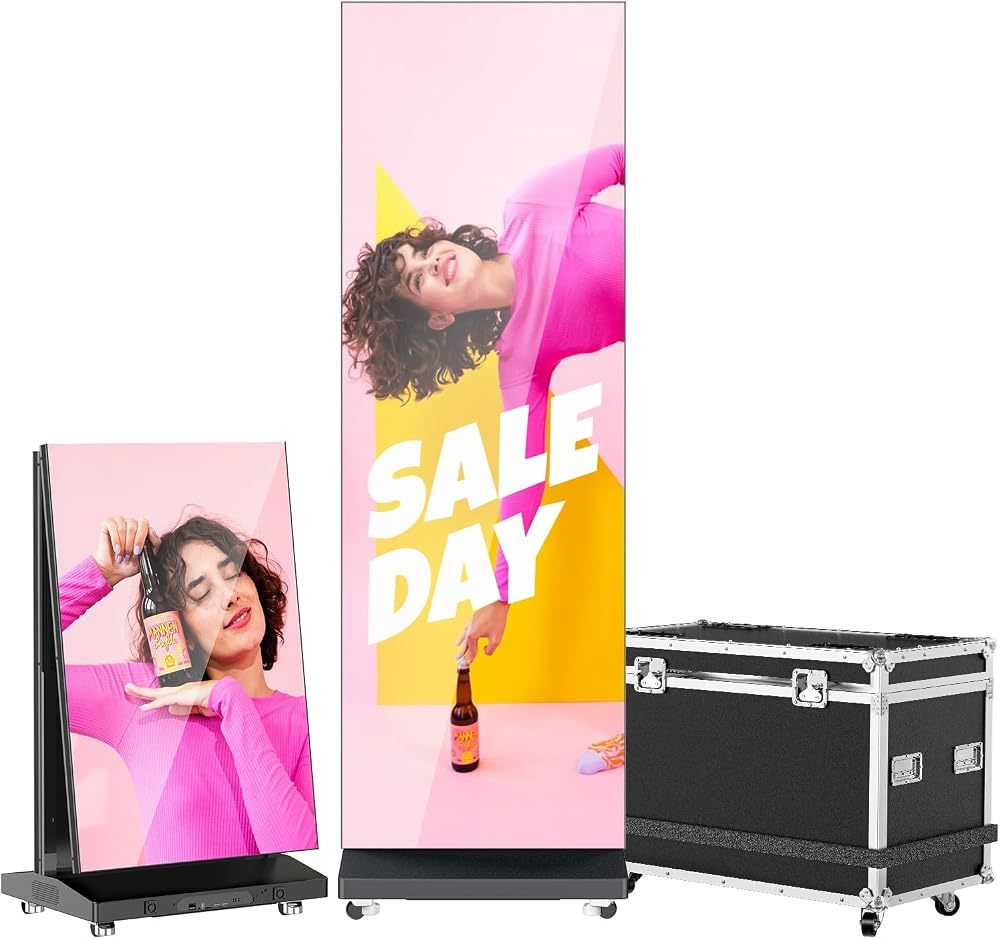
QIXZOCV MWE 43-Inch Mobile Kiosk with Flight Case
- 43" FHD
- 4 silent wheels
- Phone app publishing